
Provider guide
How to list your pet-care service on Paawrent
Paawrent helps pet owners in Bangkok find and book vets, clinics, groomers, dog walkers and pet boarding. Listing your service is free during the launch period, and customers pay you directly — Paawrent doesn't take a fee or hold any money.
Install the app
- Until Paawrent is in the App Store, our team sends you an install link by email — ask at paawrent@gmail.com.
- iPhone: install Apple's TestFlight app, then open the link and tap Install.
- Android: the Android app comes after iPhone. Tell us you use Android when you ask for the link, and we'll let you know when it's ready.
- Sign in with Google, or with Apple on iPhone. Tick the box to agree to the Terms of Service (the Terms and the Privacy Policy open from the links under it), then tap “Continue with Google” or “Continue with Apple”. If you tap a sign-in button first, tap “Agree and continue”.
Apply as a provider
- Open Profile and tap “Become a Provider”.
- Choose “Medical” (vets, hospitals) or “Service” (grooming, walking, boarding, sitting). For a service, choose “Shop / Salon / Hotel” or “Freelancer”. On the medical form, choose “Hospital” or “Individual Vet”.
- Fill in the form, tick “I have read and agree to the Paawrent Provider Terms.”, then tap “Submit Application”.
- Hospitals and vets: the “License Number” is required. Our team contacts you to check it.
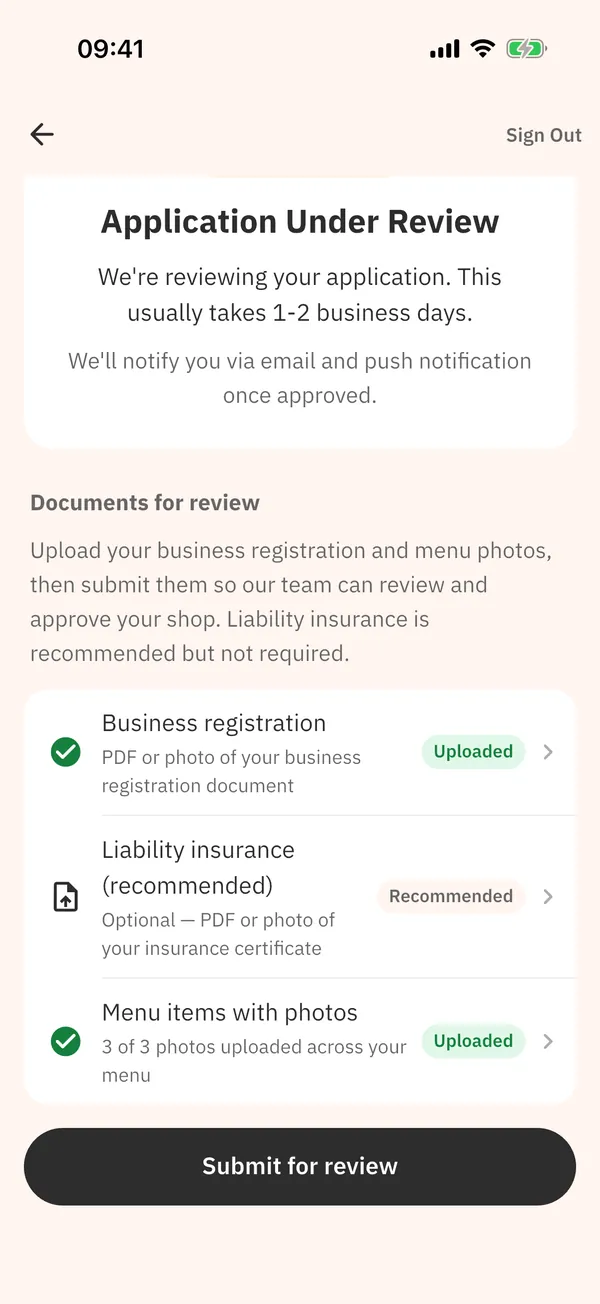
- Shops: after you submit, the “Application Under Review” screen shows “Documents for review”. Upload your “Business registration” and add menu items with at least 3 photos in total, then tap “Submit for review”. Liability insurance is recommended, not required.
- Freelancers: we may contact you to confirm your identity.
- Freelancers and individual vets: customers see only your district or area. Your exact address and phone number are shared only with customers who have a confirmed booking.
- We review every application, usually within 1–2 business days, and let you know. If it isn't approved, the app shows the reason — tap “Edit & Resubmit”.
Shop Set up before your first booking
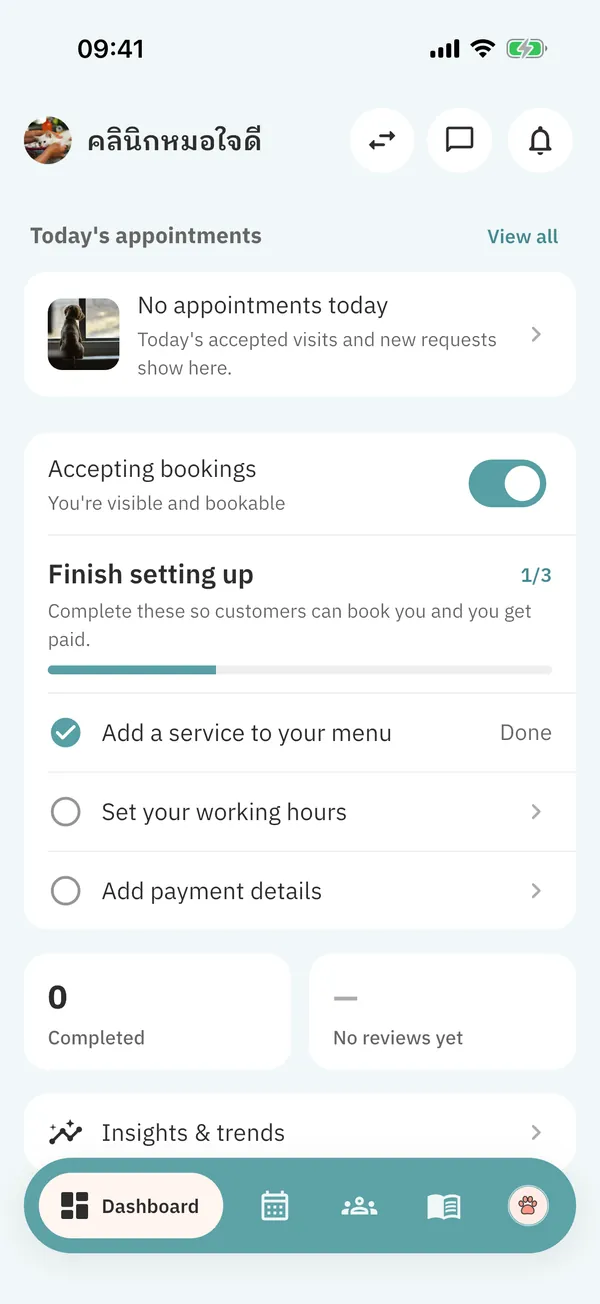
- Once you're approved, tap the two-arrows icon at the top right and pick your provider profile. The “Dashboard” tab shows “Finish setting up” with three steps.
- Your tabs are Dashboard, Bookings, Team (clinics and shops) or Schedule (freelancers and individual vets), Menu and Profile.
- “Add a service to your menu” opens the Menu tab. Tap “Add Service”, pick a service type, then choose the booking types you offer (“Single visit”, “Multi-night stay”, “Recurring package”), the price, duration, location and up to 3 photos (the first is the cover). A package also needs a single-visit price.
- Stays: each stay service looks after as many pets at the same time as you set for it in the Menu tab (1 unless you change it), and a stay doesn't block your appointment times.
- Each service in the Menu tab has a switch to open or close it for booking. To change the order customers see, tap “Reorder”, drag each service by its handle, then tap “Done”.
- “Set your working hours”: freelancers and individual vets use the Schedule tab; clinics and shops tap “Business hours & closures” at the top of the Team tab. Under “Weekly hours”, tap + next to a day and pick a start and end time (tap “More times” for half hours). Add days off under “Time off”.
- “Add payment details”: a PromptPay mobile number (recommended) or a bank account in your own or your business's name. Customers pay you using these details. You can change them later in the Profile tab under “Getting paid”.
- On the Dashboard, keep “Accepting bookings” on. Turn it off any time to hide from search — existing bookings stay.
Clinic 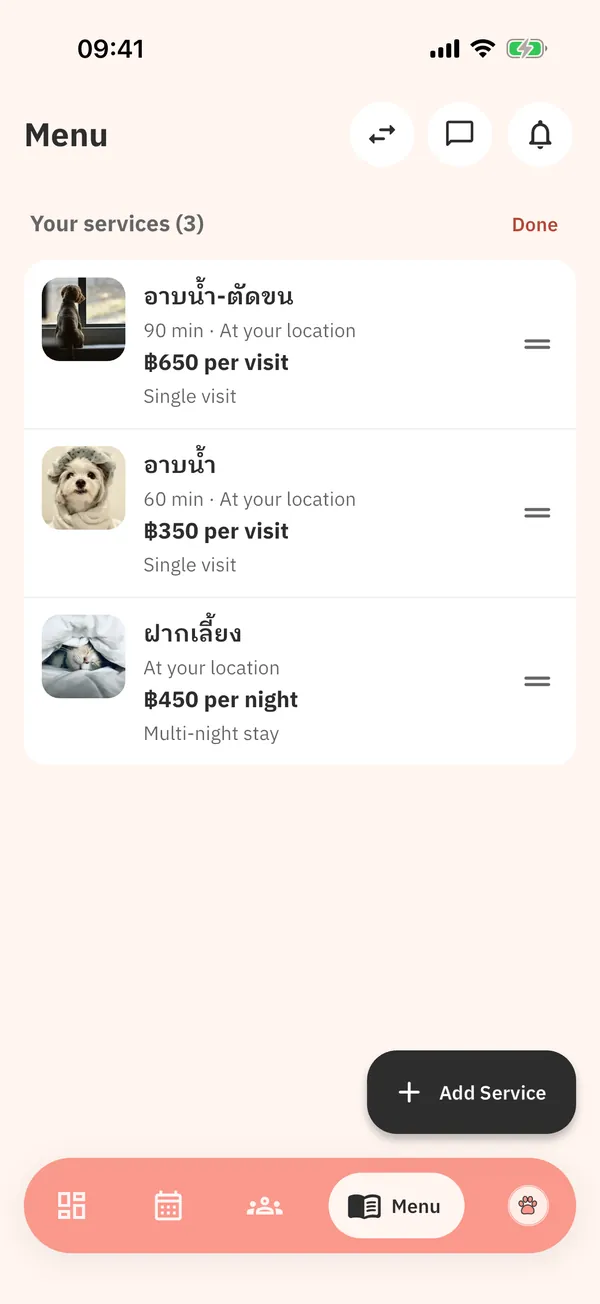
Shop 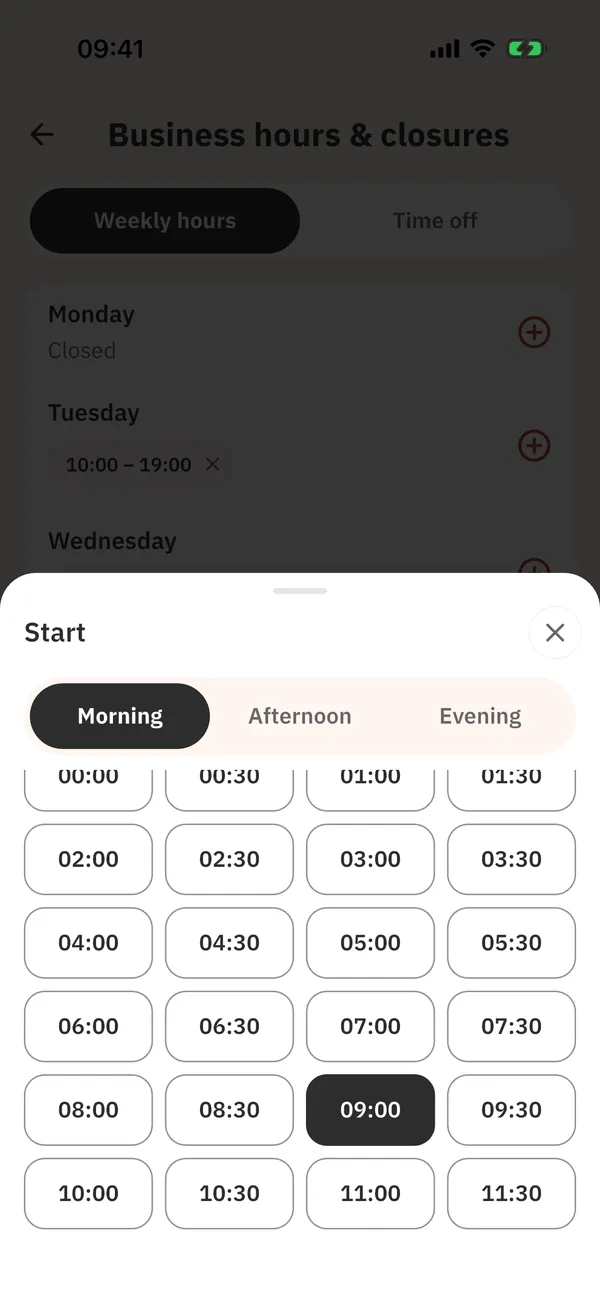
Shop Answer booking requests
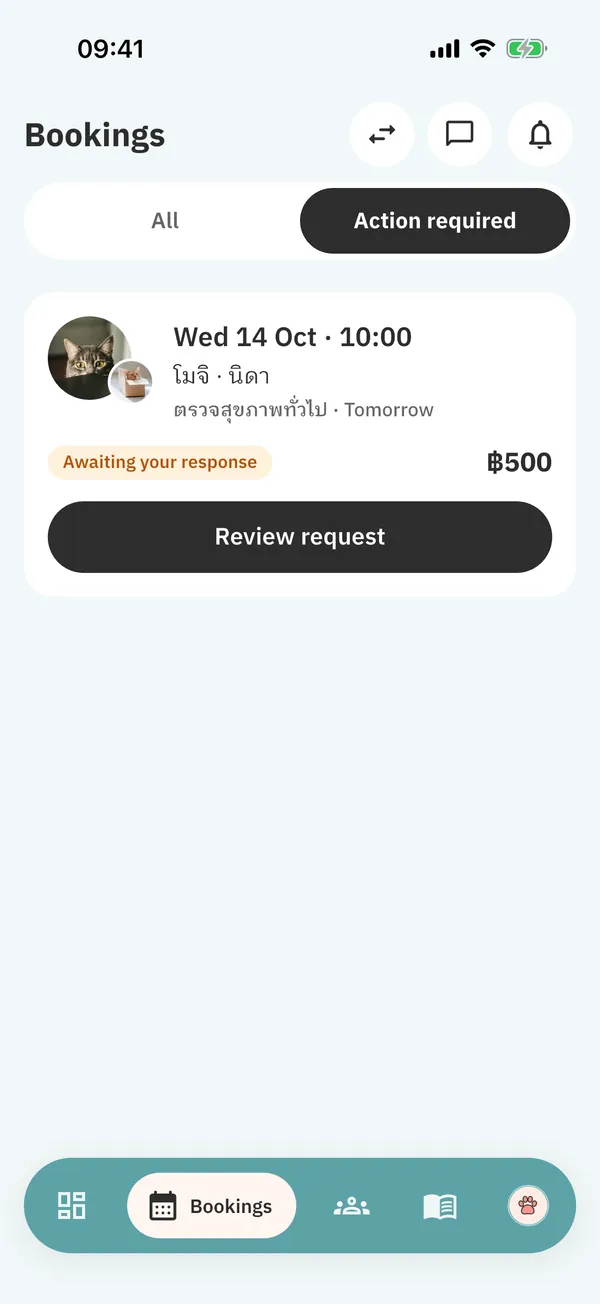
- A new request arrives as a notification. It shows on the Dashboard as “Awaiting your response” and in the Bookings tab under “Action required”.
- Tap “Review request”, check the pet and the time, then tap “Confirm booking” or “Decline”. Answer within 24 hours, or before the start time if that's sooner — otherwise the request is cancelled automatically.
- A package arrives as separate visits. Confirm each visit; “Decline whole package” declines every visit at once.
Clinic Get paid
- After you confirm (for a package, once you've answered every visit), the customer's booking shows “Pay <your name>” with a PromptPay QR for the exact amount, or your bank account and the amount, and they pay you directly. Without payment details, they're asked to message you instead.
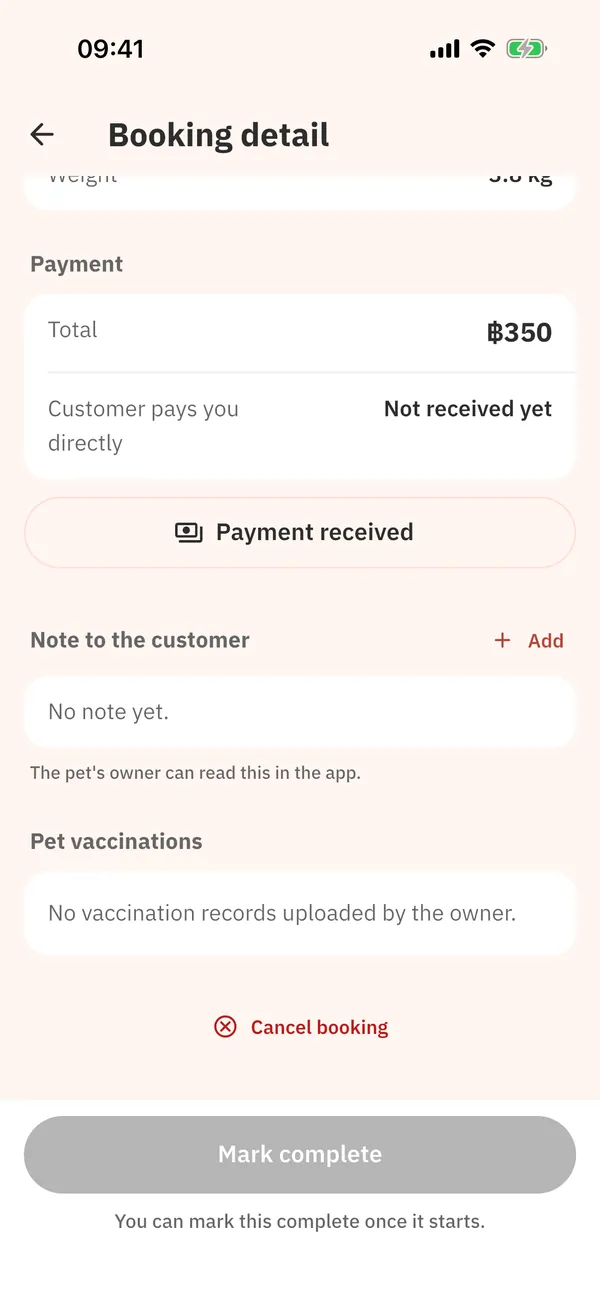
- When the money arrives, open the booking and tap “Payment received” under “Payment” (the Provider Terms ask you to do this once you have it). You can still complete the booking without it, for example when the customer pays cash at your shop, and it can't be undone. For a package, it marks the whole package as paid.
- Paawrent doesn't collect or hold payments, and there is no fee during the launch period.
Shop On the day
- To message the customer, open the booking and tap “Chat”. “Call” shows when the customer's number is available, and “Directions” when you go to the customer's address.
- Video consultations: tap “Join video call” from 30 minutes before the start until 30 minutes after the end.
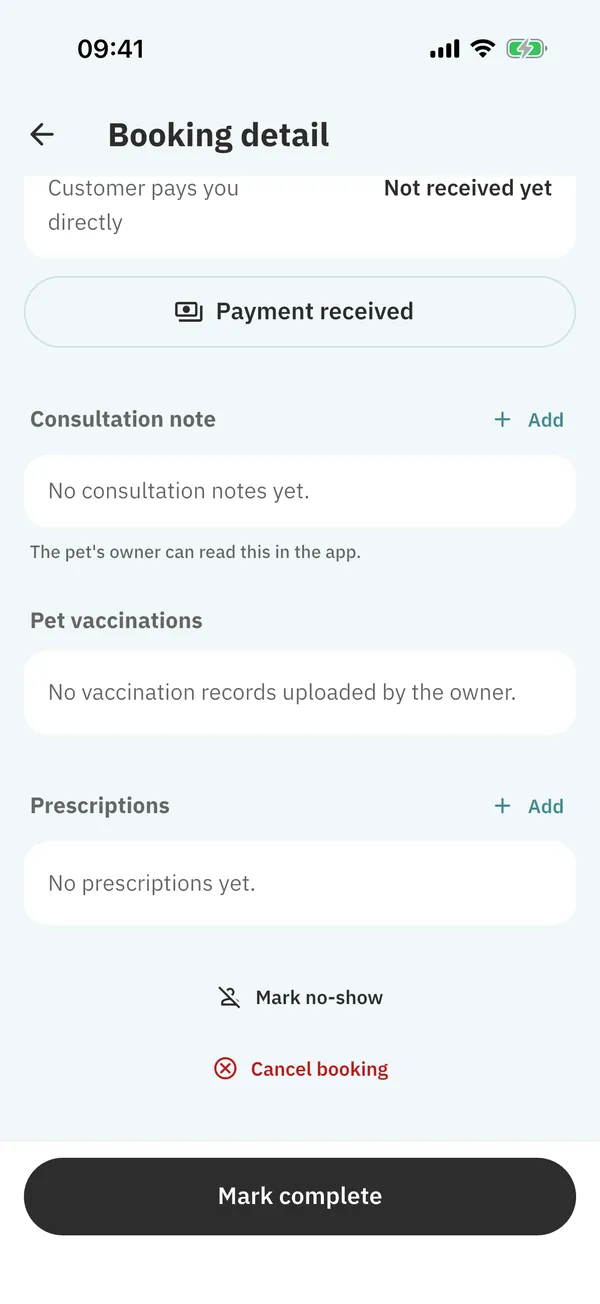
- Once the service has started, tap “Mark complete”. Stays use “Check in” (from the check-in day) and “Check out”; package visits are completed one at a time. If you forget, we remind you 48 hours after the booking ends, and it is marked complete automatically 7 days after it ends.
- Once a booking is confirmed, add a note under “Consultation note” (clinics and vets) or “Note to the customer” (shops and freelancers). The pet's owner can read it in the app. Clinics and vets can also write a prescription under “Prescriptions”, and record a vaccination they gave: tap “Record vaccination” under “Pet vaccinations” on the booking, fill in the dates, then tap “Save vaccination” (not on online consultations by video or chat). It shows on the pet's record as verified.
Rescheduling, no-shows and cancelling
- If you must move a confirmed single visit, open the booking, tap “Reschedule” and pick a new time. The customer is notified — tell them why in chat too.
- If the customer doesn't come, wait at least 15 minutes after the start and try them in chat. Then tap “Mark no-show” at the bottom of the booking (it appears once the start time has passed). For a package, open the visit they missed and mark that visit.
- If you have to cancel, tap “Cancel booking” at the bottom of the booking. For a package, tap “Cancel this visit” on a visit to cancel only that visit, or open the package from the visit and tap “Cancel whole package” to cancel every remaining visit. If the customer already paid you for what you cancel, refund them in full.
Clinic Clinics and shops: your team
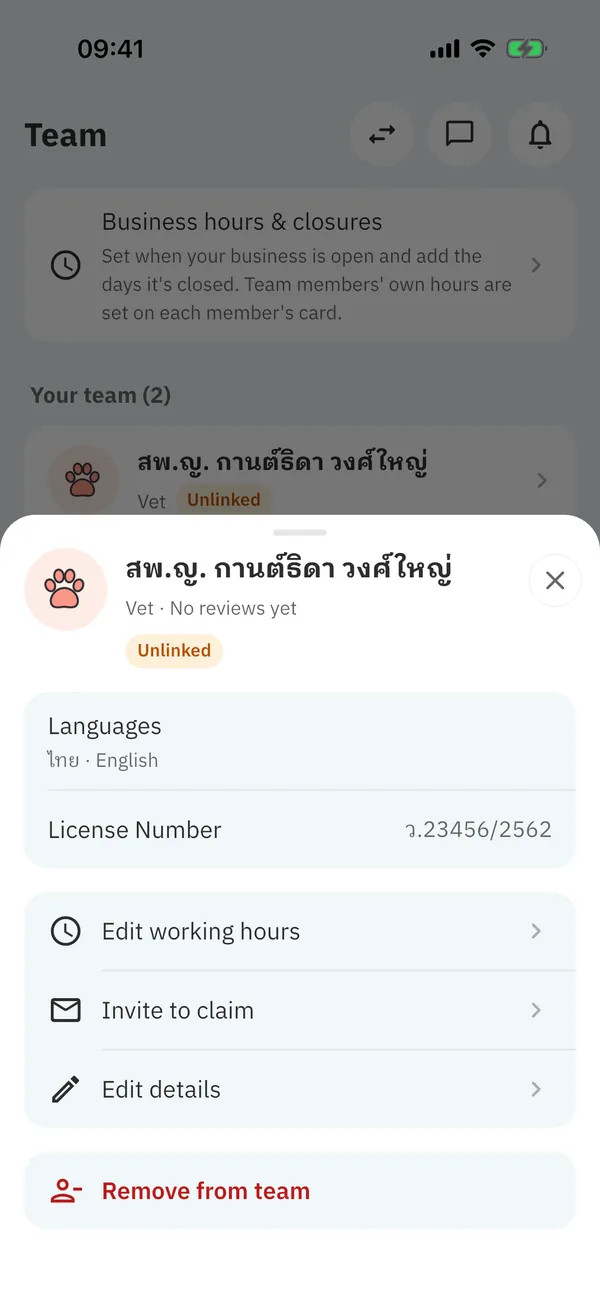
- In the Team tab, tap “Add Vet” (clinics) or “Add staff” (shops). The new member starts with your business hours — to change them, tap the member and choose “Edit working hours”. Their bookings show in your Bookings tab too.
- To let a member sign in, tap the member, choose “Invite to claim” and enter their email. We don't send an email, so tell them yourself: within 14 days they sign in with that same email and tap “Claim invite” on their Profile tab. With Apple, they must share their email, not hide it.
- Once they claim it, the member sees only Dashboard and Bookings in provider mode, with their own bookings. Your menu, hours and payment details stay with you.
Clinic
Need help?
Email paawrent@gmail.com, or in the app open the Profile tab and tap “Help & Support”.
Read the Provider Terms →